Create a new Visio diagram

Choose Microsoft SharePoint Workflow

The following Actions are supported by Visio to design a workflow:


After you designed the workflow do not forget to add an start and an end to the workflow

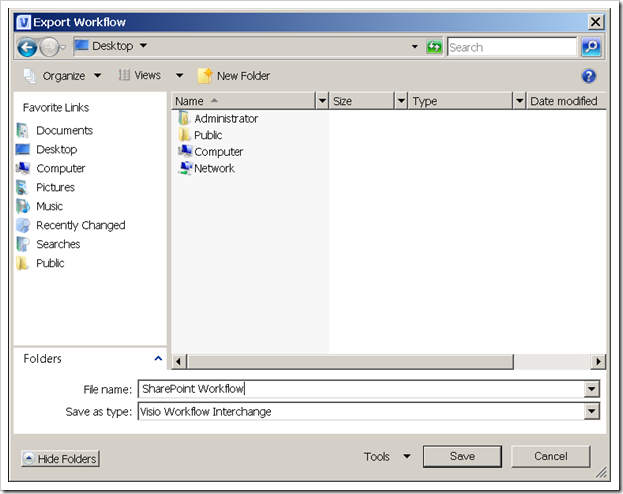
Export the workflow in the Visio Workflow Interchange format
Open SharePoint Designer and connect to the site collection where you want to enable the Visio workflow

Open up the workflow site objects and click on the button "Import from Visio"

Select the vmi file create and exported with Visio

After choosing the workflows file a wizard will be started

You can define the name for the workflow and choose the type
- Bound to a list or library or
- Reusable (all or specific content type)

SharePoint Designer is preparing the workflow configuration

The following pictures shows the workflow designed in Visio. You can now change the name (ID3) and all blue underline terms and configure the actions.

For example
- increment a variable
- copy the current item to the calendar list
- replace contribute permissions of the current item to read permissions
- the finally send a mail to the administrator

If there is a error in the workflow definition, you will get the following error message.

Save the xoml file to SharePoint.

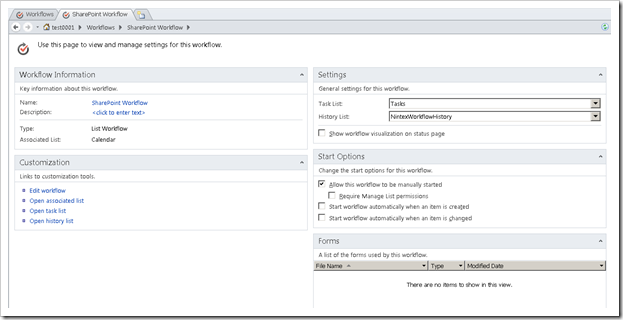
After saving the workflow you can configure it with SharePoint Designer
And now we will test the workflow. First of all we need a element in the calendar list

And now we need to start the new workflow
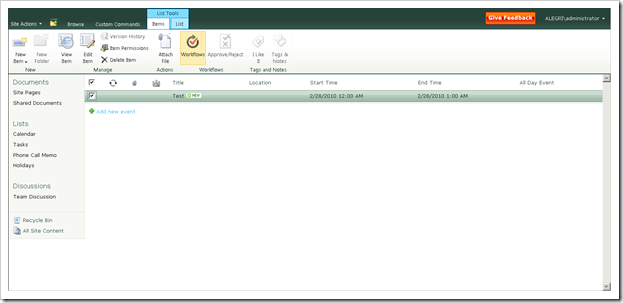
Click on SharePoint Workflow

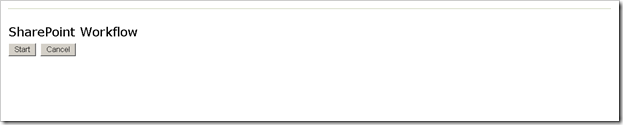
And click on Start
After starting we can have a look to the workflow history

Here we can see the SharePoint Designer/Visio workflow completed

In my environment if you want to see the workflow diagram i get a unexpected error.


